
Apply Now!
1 Apply Directly to our Online Portal
2 Upload Documentation
Documentation is required to be uploaded directly to your online application or by using the link provided in the confirmation submission email. You are welcome to email or fax it directly to our department also, at sas@cocc.edu or fax at 541-318-3737.
3 Schedule and Prepare for an Appointment
Once our department has reviewed your application and documentation, you will be contacted via email to schedule the intake appointment. Please follow the link in the email or visit the Application Center to select a total of 3 appointment dates/times you would be available.
TAKE NOTE: Our appointments are filled on a first come, first served basis, and your appointment is not scheduled until you receive a confirmation Appointment Scheduled email invite. Please review the visual guide tab below for steps on how to submit your appointment request.
Within this appointment you will be given your accommodation eligibility, along with training on how to use your new Student Accessibility Services account. For further information regarding this appointment please click on the "Review Appointment Process" button to the right.
- Visual Guide to Schedule an Appointment for New Students
Visual Guide to schedule an appointment for new students:
**Note must have first submitted an application in order to complete this process**
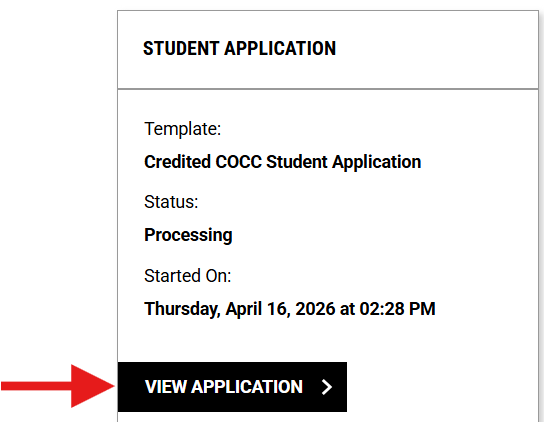
1. Start by visiting the Application Center and clicking on ‘View Application’
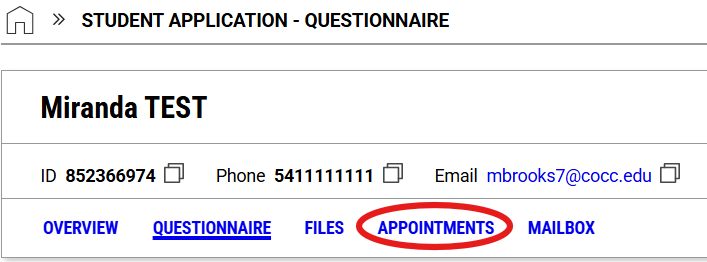
2. Using the top menu bar in underneath your name click on the tab labeled ‘Appointments’
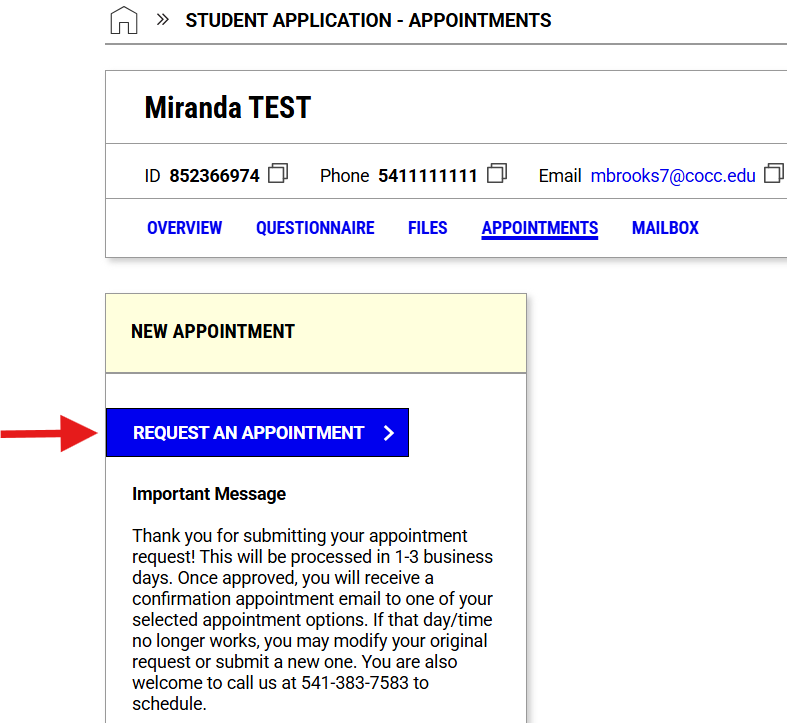
3. Click on ‘Request An Appointment’
4. Complete all of the required fields on this page for each section; Appointment Request Detail, Appointment Purposes, and Select Your Availability. See below for further details on each section;
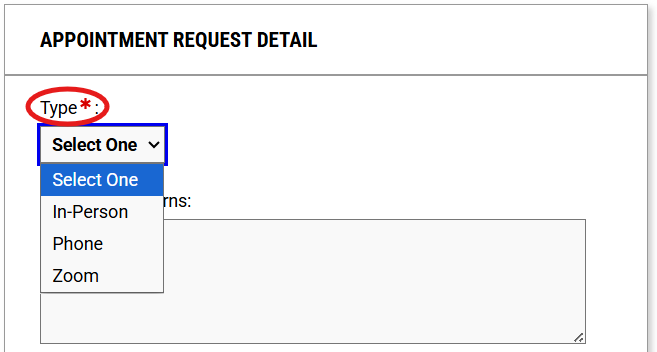
a. Appointment Request Detail: Please specify the type of appointment you would prefer; In-Person, phone or Zoom. Using the drop-down menu.
i. Along with notifying us of anything you would like to note or concern you may like to discuss during this appointment in the comment box (not required).
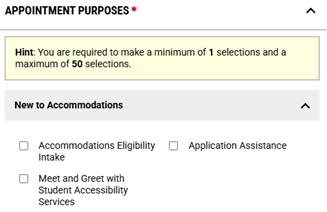
b. Appointment Purpose: Please select at least 1 of the options that is the purpose of the appointment request.
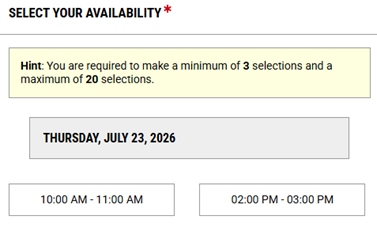
c. Select Your Availability: Please select a minimum of 3 selections that works with your availability, from the dates and times listed.
i. Take note this does not guarantee one of these dates/times will be chosen for your appointment and you may be contact from the SAS staff to choose additional dates/times due current ones listed are no longer available.
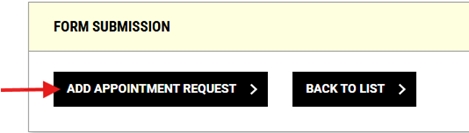
d. Submit request by scrolling to the bottom of the page and click on ‘Add Appointment Request’
5. Once submitted you page will refresh back to the start of the Appointments section with a Success! Your action has been completed underneath your name showing it went through successfully. Reminder!! This is not scheduled until you have received the Confirmation Appointment Scheduled email sent to you from SAS.
a. An Appointment Request box will also appear where you can Modify/Cancel this request at any time.